Playbook — Segment review (accept / drop clips)
This playbook walks through the Segment-review task end to end, so the expected flow is clear without running Annie. Use it when a long video has been cut into per-clip segments (each a span of the video) that must be individually checked and kept or discarded — for example validating a WhisperX forced-alignment against a ground-truth segmentation.
The motivating file is review_band.csv: one row per clip, identified by video_id +
segment_id, carrying two competing start/end bands (a cut prediction and a GT
reference) plus per-clip metrics and transcripts.
Note
The bundled example configs have no segmentation source yet, so the screens below are mockups rather than captures. The other playbook’s screenshots are the real UI.
Step 1 — Declare the segmentation source on the Dataset tab
Add the segmentation CSV as a data source and pick the Segmentation role. The role is the task declaration: choosing it turns on the segment mapping controls (the row id column and the start/end bands) and makes the Segment review task appear as Ready below.
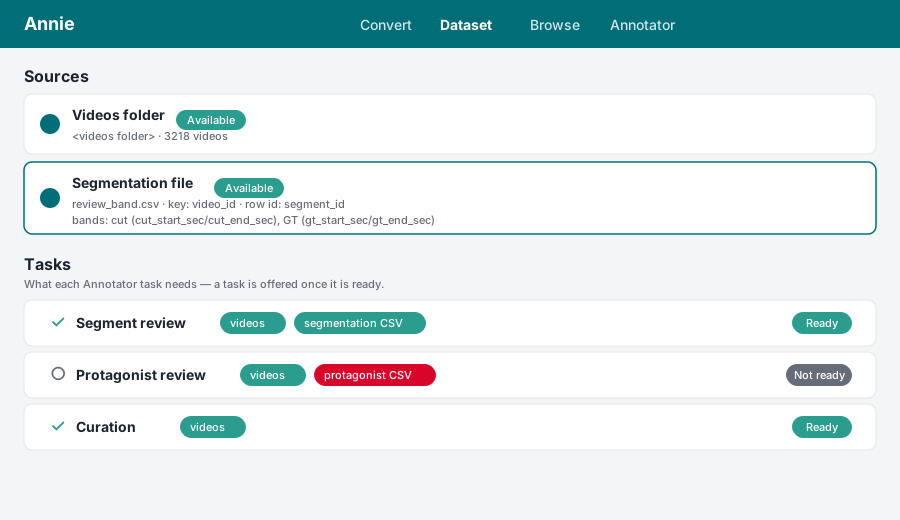
What to notice:
Key column joins to the video id — this is the only link between a row and its video. The video itself is found in the scanned videos folder, so the CSV never carries a path.
Row id column is what tells apart the many rows that share one video id. It combines with the key into the clip identity
{video_id}_{segment_id}(e.g.227426_15) that each accept/drop is stored under. Pick a column that is unique within a video.Bands are named start/end column pairs. Add one per competing segmentation — here
cut(cut_start_sec/cut_end_sec) andGT(gt_start_sec/gt_end_sec).Value columns become the read-only tags shown on each clip; tick
segment_idhere if you want the segment id visible on the card.The Tasks panel shows, per task, which sources it needs and whether it is Ready. Segment review is ready as soon as the videos folder and the segmentation CSV exist.
Step 2 — Open the Annotator and pick the Segment-review task
The Annotator is the single supervision surface; a task switch at the top offers only the ready tasks. Selecting Segment review shows one clip at a time.
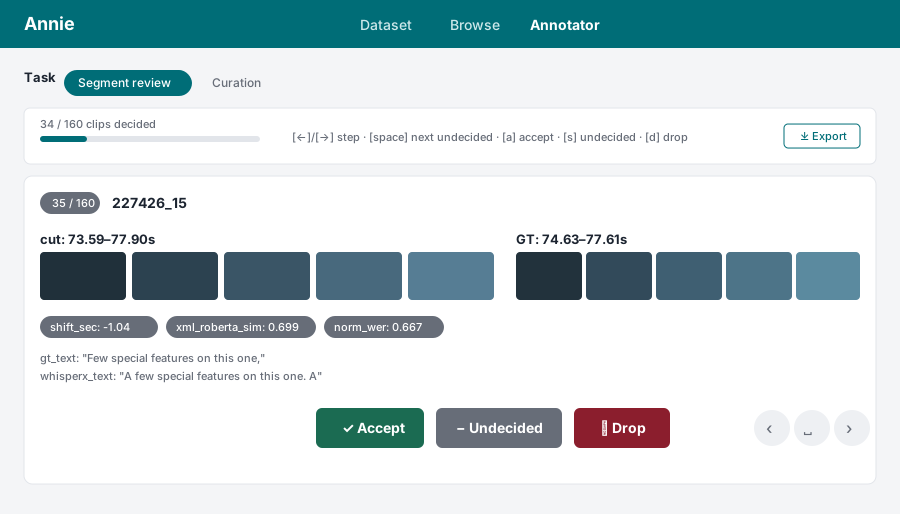
What to notice:
A single toolbar across the top carries the decision progress (
34 / 160 clips decided), the keyboard legend, and Export — all on one line, always open.The clip’s tags (metrics,
gt_text,whisperx_text) sit at the top of the card, so the sample reads big; then a lazy ORIGINAL placeholder that embeds the whole source video on click.Below that, one row per band. Each row aligns the band’s name, start, end, and duration as borderless table cells — so the numbers line up column-wise between bands and the alignment shift is visible by eye — followed by five frames sampled across that span and a clip placeholder that cuts exactly that span on demand and plays it.
Accept / Undecided / Drop sit centred at the bottom. A decision saves to the review database immediately and paints the card with a coloured border and a lighter wash of the same hue: green for accepted, red for dropped.
Deciding does not advance. The card stays put so you see the verdict land on the sample you just judged; you move on deliberately.
Step 3 — Work through the clips (mouse or keyboard)
Drive the pass however is fastest:
←/→— step to the previous / next clip without deciding.space— jump to the next clip with no decision yet, wrapping around. The matching button sits between the two arrows at the card’s bottom right, and both go inert once every clip is decided.a— Accept, keep the clip.s— Undecided, clear any verdict and return the clip to the undecided pool. This works even on a clip already accepted or dropped, so a misclick is recoverable.d— Drop, discard the clip.
Each decision persists as you go, so the pass is resumable: close the tab, restart Annie, reopen the same source, and every prior accept/drop is restored from the database. The toolbar’s progress bar tracks how far along the pass is.
Step 4 — Export the two decision sets
Press Export in the toolbar. Segment review produces two files beside the segmentation source:
review_band_accepted.csv— the kept clips.review_band_dropped.csv— the discarded clips.
Each file carries the clip key, the video_id / segment_id, and the clip’s passthrough
columns, so the accepted set is a ready-to-use keep-list and the dropped set a discard
record. Undecided clips appear in neither file.
Where this lives in the code
Concern |
Module |
|---|---|
Clip model, loader, two-file export, next-undecided search |
|
Segmentation role, bands, task readiness |
|
Accept/drop persistence ( |
|
The task UI, band rows, keyboard |
|
Span-clipped frame decode |
|
On-demand span cut for the clip box |